 asked on May 27, 2026
Over the last few months I have noticed several times the report rendered in the UI doesn't line up with what is exported to the excel using the export API. This has been very difficult to keep track of and has raised several issues in my excel styling logic because of unexpected rows being present. Because there isn't a good way yet which I am aware of to consistently predict how many report header rows will get generated, I am calculating the first row where the table data starts by using a few parameters that I do have like total number of data rows (My input data), Total number of rows in the created worksheet and headers that I manually add like titles, etc. This works well usually but when flex adds rows to the exported excel which I am not aware of, it breaks the styling. Here is one example I found today:
When I add report filters, they show as one row at the top visually in the report but in the exported excel it shows as multiple rows (And only 2 of them are appearing - Item label and Customer group in this case). So I had to modify my function to account for that.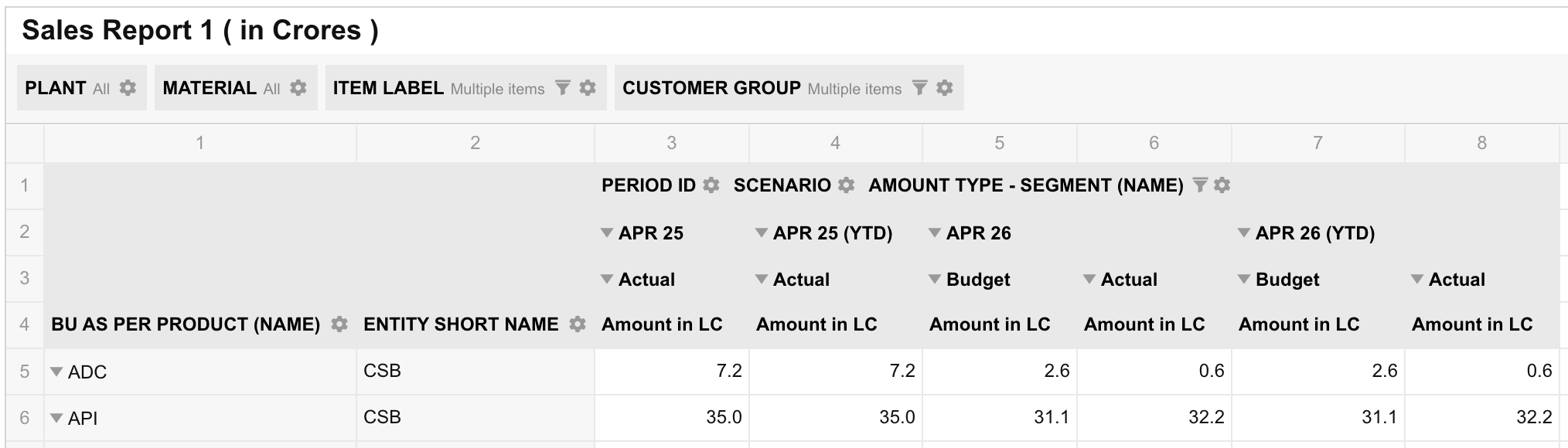
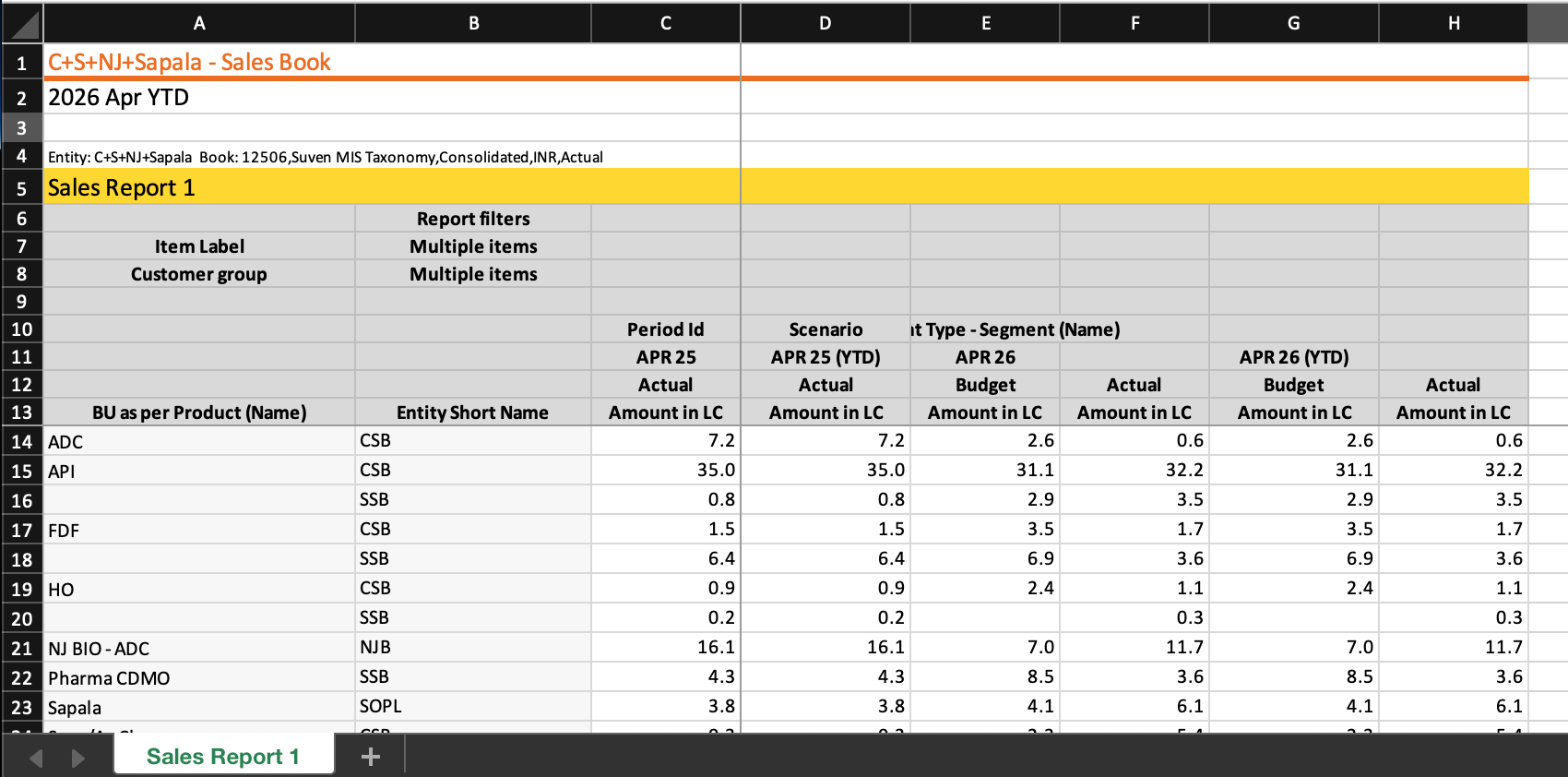
If I switch to flat form and export it in the UI it only shows one column header but still adds all those filter rows plus adds additional rows like a row with the title being repeated and an empty row in between.
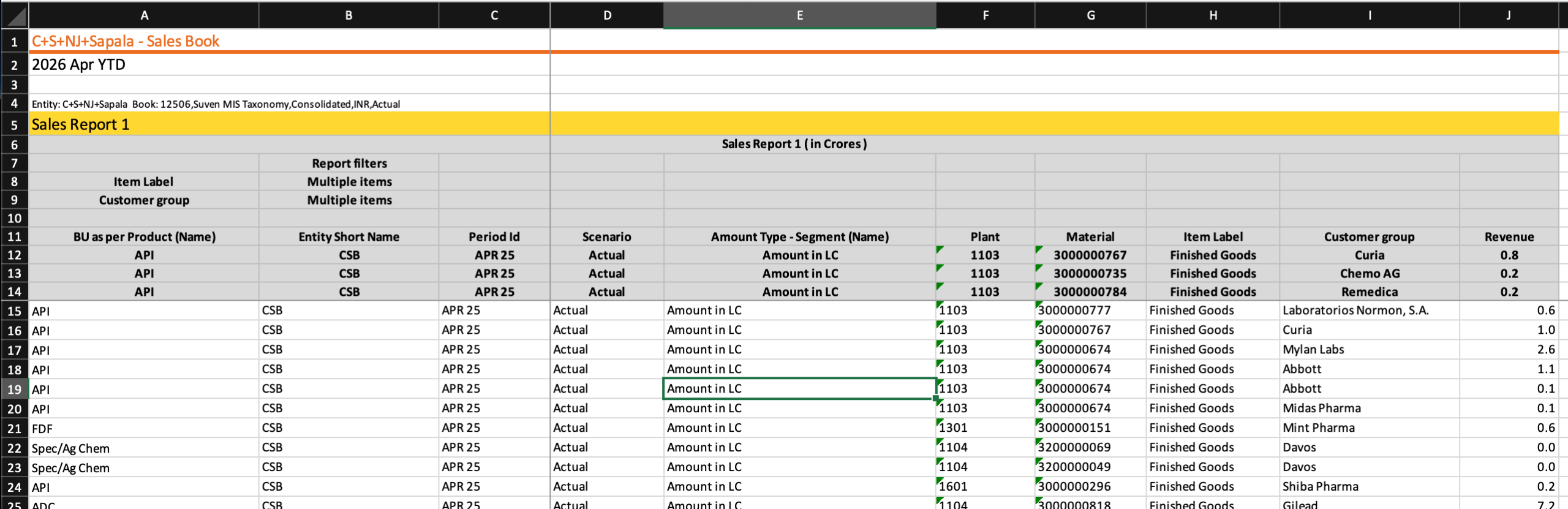
There were also mistakes in the merge cells during export of flat form which I had fixed separately. Is there a way we can narrow down these so that I don't have to guess? If there are comprehensive rules to this which I can follow that would be great. Best case would be if there was a way to get the number of header rows directly without me calculating but I am not sure if that is possible.
 ⋅ May 28, 2026
Hello Amogh,
Thank you for contacting us.
We want to explain that Flexmonster shows report filters only for filtered fields in the exported file. In the first screenshot, "Item Label" and "Customer Groups" are filtered ("Multiple items" label is shown). That is why only "Item Label" and "Customer Groups" are shown in the exported file.
If you want to keep the report filters in the export and modify your Excel styling logic based on the number of report filters, you can use the getReport API call. Please check the following example that illustrates how to retrieve the filtered fields from the report filters: https://jsfiddle.net/flexmonster/awp2sxbj/.
It is also possible to completely remove the report filters area from the exported file. You can use the showReportFiltersArea option and toggle it on the exportstart and exportcomplete events. For example:
flexmonster.on('exportstart', function() {
options = flexmonster.getOptions();
options.grid.showReportFiltersArea = false;
flexmonster.setOptions(options);
flexmonster.refresh();
});
flexmonster.on('exportcomplete', function() {
options = flexmonster.getOptions();
options.grid.showReportFiltersArea = true;
flexmonster.setOptions(options);
flexmonster.refresh();
});
This way, it hides the report filters from the export while keeping the filters applied to the data. You are welcome to check the following JSFiddle: https://jsfiddle.net/flexmonster/xf2epk7d/.
Currently, Flexmonster does not provide a built-in feature for getting the number of header rows. With this in mind, we recommend using one of the suggested approaches.
Please let us know if it works for you. Looking forward to hearing from you.
Kind regards,
Nadia
⋅ June 17, 2026
Hello Amogh,
Hope you are having a great week.
We were wondering if you had a chance to check the suggested approaches. Could you please confirm if it works for you?
Looking forward to hearing your feedback.
Kind regards,
Nadia
⋅ June 19, 2026
Hi Nadia,
I have implemented the suggestions and got it to a relatively stable state. Having the ability to get information on the header rows would be very useful in the future though.
Thanks for the help
⋅ June 22, 2026
Hi Amogh,
Thank you for the feedback!
Feel free to contact us if any questions arise.
Kind regards,
Nadia

